はじめに
Unity の 3D モデルに口パクを入れたいと思ったとき、やり方はいくつかあります。
よくあるのは、音声の音量や周波数帯を見て、それっぽく口を動かす方法もあります。
実装は比較的簡単ですが、実際に話している内容と口の形が一致するとは限りません。
特に日本語の AIUEO 口パクをきれいにやろうとすると、見た目の違和感が出やすいです。
今回、自分は Style-Bert-VITS2 を使った TTS から、\
Unity 側でそのまま使える口パク情報をかなり素直な形で取り出せるようにしました。
Style-Bert-VITS2 は下記のリンクで元のソースコードを取得できます。
ポイントは、音声波形を後から解析するのではなく、TTS モデルの内部で使っている情報をそのまま利用することです。これをやると、生成された音声と口パク情報が最初から一致しているので、\
少なくとも TTS が発話している内容に対してはかなり正確な口パクが作れます。
しかも、Style-Bert-VITS2 は日本語処理の流れが比較的追いやすく、\
Duration Predictor で各音素の長さも取れるので、実装のハードルもそこまで高くありません。
この記事では、以下の流れでまとめます。
- Unity の AIUEO 口パクの基本
- 口パク情報を作る方法のざっくり比較
- なぜ Style-Bert-VITS2 だと性格な口パク情報を取り出しやすいのか
- Python 側で音素(Phoneme)と長さ(Duration)を取り出す流れ
- Unity 側で JSON を受け取ってブレンドシェープを動かす構成
Unity の AIUEO 口パクとは何か
日本語の口パクは、かなり単純化すると AIUEO の 5 種類の口の形で表現できます。
たとえば 3D モデルの顔に以下のようなブレンドシェープがあるとします。
- A
- I
- U
- E
- O
- Rest または Neutral (発話してないところ)
このとき、発話中の音素列と各音素の発声時間が分かれば、かなり自然な日本語口パクを作れます。
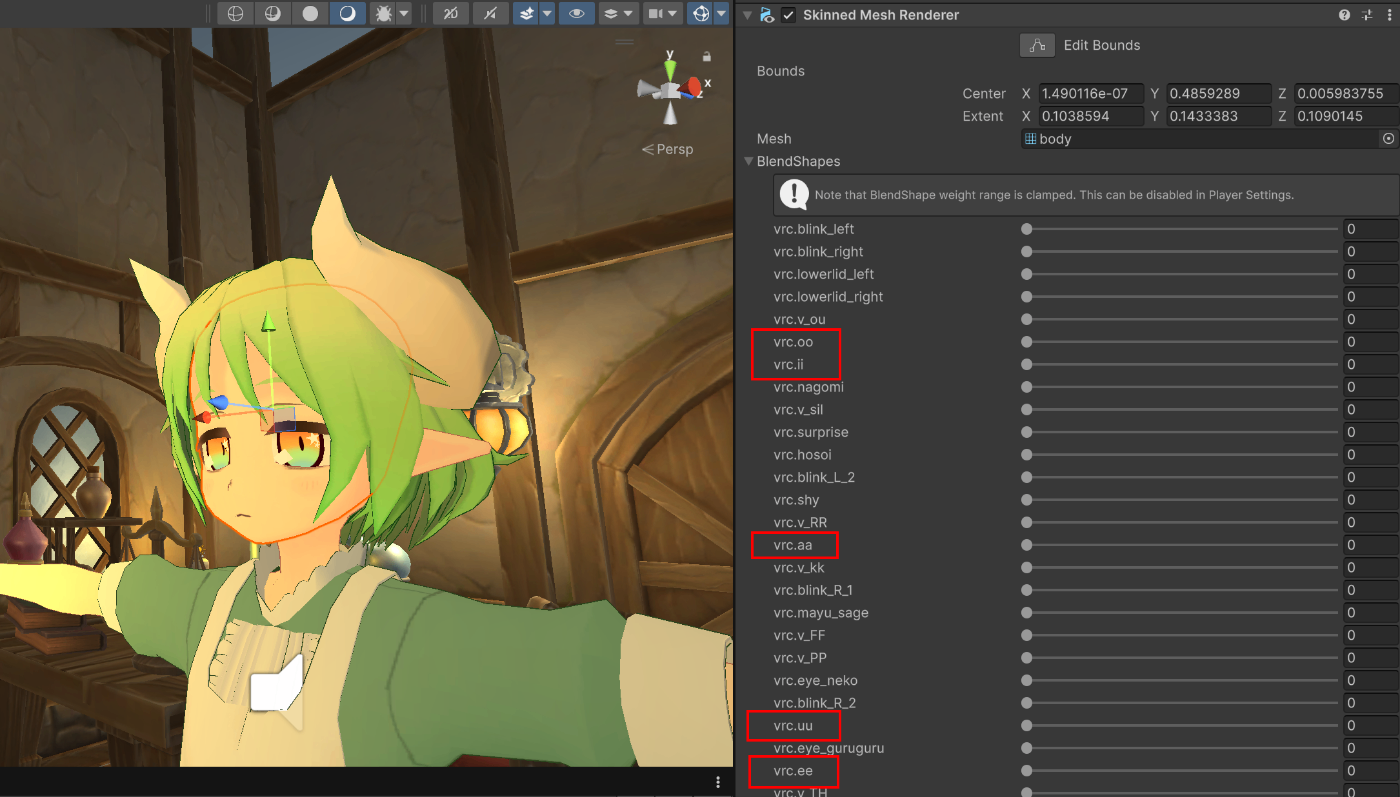
vrc.aa, vrc.ii, vrc.uu, vrc.ee, vrc.oo は AIUEO のブレンドシェープです。
たとえば「おはようございます」であれば、実際には子音も含まれますが、\
見た目として重要なのは母音です。なので、音素列から母音を抜き出して、\
それぞれの継続時間に応じて A / I / U / E / O のブレンドシェープを切り替えていけばよい、という考え方になります。
ここで必要になる情報はシンプルです。
- 実際に発話される音素列 (英語:Phoneme)
- 各音素が何フレームまたは何秒続くか (英語:Duration)
この 2 つが正しく取れれば、Unity 側ではそこまで難しいことをしなくても口パクできます。
口パク情報を取る方法はいろいろある
口パクの作り方はいくつかあります。
1. 音量ベースで口を開閉する方法
一番簡単なのは、音量に応じて口の開閉量を変える方法です。
音が大きいときは口を大きく開けて、小さいときは閉じる、というやり方です。とりあえず喋っている感は出ますが、日本語の AIUEO にはなりません。

自然な口パクを作るには AIUEO の口の形が必要
2. 音声波形から母音推定する方法
もう少し頑張ると、音声波形を解析して母音を推定する方法があります。
ただしこれは、結局あとから音を聞いて推測しているだけなので、ノイズや話者差、音質の影響を受けやすいです。リアルタイム処理や既存音声への後付けとしては意味がありますが、TTS を使っているなら遠回りになりがちです。
有名な無料プラグインで口パク情報をとれるのは hecomi さんの uLipSync が非常に有名です。
有料 Plugin などだと Salsa Lipsync が有名です。
Webgl での口パク結果は微妙。。。
3. テキストから音素を作って時間を割り振る方法
日本語テキストから pyopenjtalk などで音素列を作り、それを元に口パクを作る方法です。
これだけでもかなり良いのですが、各音素の長さをどう決めるかが問題になります。等分配すると見た目はそれっぽくなっても、生成された音声と完全には一致しません。
4. TTS の内部情報をそのまま使う方法
今回の方法です。
Style-Bert-VITS2 が最終的に音声を作るまでの間に、
- どの音素を読んでいるか
- 各音素がどれくらいの長さになるか
という情報を内部で持っています。
だったら、それをそのまま取り出して使えばいい、という発想です。
これなら、あとから波形解析する必要ないし、\
生成結果と口パク情報のズレもほぼ 0 です。
なぜ Style-Bert-VITS2 でやりやすいのか
Style-Bert-VITS2 では、日本語テキストから音素列を作り、\
モデル内部で音素の長さ (以降 duration とします) を予測して音声を生成します。
つまり、口パクに必要な情報が最初から揃っています。
自分が今回良いと思った点は以下です。
- pyopenjtalk ベースで音素列を取り出せる
- モデル内部で各音素の duration を予測している
- Unity 側では単純なタイムライン再生に落とし込める
これがあれば、
- 音素 ID を実際の音素記号へ変換
- 母音だけを AIUEO にマッピング
- duration を秒へ変換
- 口パクイベント列に変換
という手順で Unity 用口パク情報を生成できます。
全体の流れ
今回の構成は大きく分けると以下です。
- 推論時に音素 ID (phones) と duration を取得する
- 音素 ID を実際の音素へ変換する
- 母音と休符情報から AIUEO タイムラインを作成する
- FastAPI で音声配列とタイムライン JSON を返す
- Unity 側で JSON を受け取り、AudioSource の再生時間に合わせてブレンドシェープを動かす
ここからは、Python 側の話を順番にまとめます。
音素 ID (phoneme id) と長さ (duration) を取得する方法
phones (音素 ID) は style_bert_vits2/models/infer.py で取得できます。
get_text の結果で音素の配列の結果 phones がそれです。
下記は phones の例です。
'phones': [0, 0, 0, 65, 0, 37, 0, 8, 0, 99, 0, 65, 0, 65, 0, 35, 0, 65, 0, 100, 0, 8, 0, 40, 0, 60, 0, 8, 0, 76, 0, 82, 0, 107, 0, 0, 0]duration は style_bert_vits2/models/models.py で取得できます。
styles 機能を使う場合、代わりに models_jp_extra.py に修正します。やり方は同じです。
下記のコードの w_ceil 変数は生の duration です。
そのままだと使えないので CPU 側に移動し、int の配列にします。
下記はゲットできた duration の例です。
dur_frame : [15, 3, 3, 3, 3, 4, 6, 3, 5, 2, 2, 4, 4, 3, 2, 4, 3, 3, 3, 3, 4, 6, 3, 3, 6, 2, 4, 3, 3, 4, 3, 4, 5, 4, 5, 3, 8]最重用の duration と phonemes (phonemes の id) が取得できましたので、
どの方法でもいいですが、最上階までデータを戻せばいいです。
(関数の return に含めるなど)
私はちょっとした工夫して各 infer() 関数のパラメータ追加せずに実装しました。
infer() の呼び出しところが非常に多いので、こうした方が楽ですね。
詳しくは fork した github の Commit log 見ていただければ幸いです。
phonemes_id を実際の音素に変換する方法
ここで style_bert_vits2.nlp.symbols.SYMBOLS を使って ID をデコードします。
これにより、たとえば以下のような結果が得られます。
0は_65はo37はh8はa
という具合です。
実際に変換すると、
['_', '_', '_', 'o', '_', 'h', '_', 'a', ...]
のような形になりました。
これを見ると、_ (空) を挟みながら音素列が並んでいることが分かります。
ここでのポイントは以下です。
_は空なので口を閉じる指示ではない- 子音は時間を進めるが、口の形は前の母音を維持してよい
- 母音
a i u e oが実際の AIUEO 口形に対応する .やpau、sil、Nなどはやすみ(REST)扱いにする
このルールでタイムラインを作ると、かなり自然な日本語口パクになります。
まずは先の手順でもらった phonemes (phonemes_id) を変換する必要があります。
変換リストは style_bert_vits2.nlp.symbols にあるので import します。
symbols を使って id を音素に変換します。
(phone_ids は前のステップの phones)
変換後の音素はこんな感じです。
phonemes : ['_', '_', '_', 'o', '_', 'h', '_', 'a', '_', 'y', '_', 'o', '_', 'o', '_', 'g', '_', 'o', '_', 'z', '_', 'a', '_', 'i', '_', 'm', '_', 'a', '_', 's', '_', 'u', '_', '.', '_', '_', '_']おわかりいただけでしょうか?入力は「おはようございます。」です。
AIUEO タイムラインを組み立てる考え方
タイムラインを作るときに大事なのは、duration の各要素に対して時間を進めていくことです。
処理の考え方としては、
- blank は現在の口形を維持
- 子音も現在の口形を維持
- 母音が来たらその口形へ切り替え
- REST 系記号が来たら口をニュートラルへ戻す
という流れになります。
ここで blank や子音のたびに口を閉じてしまうと、口が細かくパカパカしてかなり不自然になります。
逆に、母音が続くあいだは口形を維持し、必要なところだけ切り替えるようにすると見た目が安定します。
最終的には、以下のようなイベント列に形成します。
t0t1vw
ここで v は A / I / U / E / O / REST です。
この形にしておけば、Unity 側ではかなり扱いやすいです。
前のステップで音素のリストができたので、長さと合体して各音素のタイムフレームを計算します。
下記の build_aiueo_timeline で完結します。
出たタイムラインの結果はこんな感じです。入力は「おはようございます。」でした。
[
  {"t0": 0.2438, "t1": 0.4296, "v": "O", "w": 95},
  {"t0": 0.4296, "t1": 0.5689, "v": "A", "w": 95},
  {"t0": 0.5689, "t1": 0.952, "v": "O", "w": 95},
  {"t0": 0.952, "t1": 1.0565, "v": "A", "w": 95},
  {"t0": 1.0565, "t1": 1.2307, "v": "I", "w": 95},
  {"t0": 1.2307, "t1": 1.3816, "v": "A", "w": 95},
  {"t0": 1.3816, "t1": 1.4861, "v": "U", "w": 95},
  {"t0": 1.4861, "t1": 1.5325, "v": "REST", "w": 60}
]
で最終的に Unity 側で受け取りやすいよう、JSON に整形します。
こんな感じになります。
{
  "utterance": "おはようございます。",
  "sample_rate": 44100,
  "blend": "{\"events\": [{\"t0\": 0.2438, \"t1\": 0.4296, \"v\": \"O\", \"w\": 95}, {\"t0\": 0.4296, \"t1\": 0.5805, \"v\": \"A\", \"w\": 95}, {\"t0\": 0.5805, \"t1\": 0.9868, \"v\": \"O\", \"w\": 95}, {\"t0\": 0.9868, \"t1\": 1.0565, \"v\": \"A\", \"w\": 95}, {\"t0\": 1.0565, \"t1\": 1.2307, \"v\": \"I\", \"w\": 95}, {\"t0\": 1.2307, \"t1\": 1.3816, \"v\": \"A\", \"w\": 95}, {\"t0\": 1.3816, \"t1\": 1.4745, \"v\": \"U\", \"w\": 95}, {\"t0\": 1.4745, \"t1\": 1.5209, \"v\": \"REST\", \"w\": 60}]}",
  "audio_wave": [
    -0.000213623046875,
    0.00006103515625,
    -0.000152587890625,
    ...
    0.000274658203125,
    -0.0001220703125,
    ]
}
Unity 側の受け取り構成
Unity 側で先ほどの JSON データを受け取るためのクラス作成
[Serializable]
public class SBV2LipSync
{
    public float t0;
    public float t1;
    public string v;
    public float w;
}

[Serializable]
public class LipSyncTimeline
{
    public SBV2LipSync[] events;
}

[Serializable]
public class TextToSpeech
{
    public string utterance;
    public string blend;
    public float[] audio_wave;
}
そして、API 通信と受け取りのための関数用意
パラメータの text は発言したいテキスト。「おはようございます。」など
    public IEnumerator Upload(string text)
    {
        # 公開 API に呼び出し
        using (UnityWebRequest www = new UnityWebRequest("https://lycoris52.net/ttsapi/tts", "POST"))
        {
            string dialogue = $"{{\"text\":\"{text}\"}}";

            byte[] bodyRaw = Encoding.UTF8.GetBytes(dialogue);
            www.uploadHandler = (UploadHandler)new UploadHandlerRaw(bodyRaw);
            www.downloadHandler = (DownloadHandler)new DownloadHandlerBuffer();
            www.SetRequestHeader("Content-Type", "application/json");
            yield return www.SendWebRequest();
            if (www.isNetworkError || www.isHttpError)
            {
                Debug.Log(www.error);
            }
            else
            {
                # API の結果を Deserialize してオブジェクト化
                string result = www.downloadHandler.text;
                TextToSpeech tts = JsonConvert.DeserializeObject<TextToSpeech>(result);
                aiueoTimelinePlayer.Play(tts.blend);

                # 同時にもらった音声データも生成する
                AudioClip audioClip = AudioClip.Create("voice", tts.audio_wave.Length, 1, 44100, false);
                audioClip.SetData(tts.audio_wave, 0);
                mAudioClipList.Add(audioClip);

                Debug.Log("API execute Successfully.");
            }
        }
    }
APIの 結果をもらって TextToSpeech オブジェクトに変換されます。
そして次に紹介する aiueoTimelinePlayer.Play(tts.blend); でもらった口パク情報をマッピングして、再生します。
その口パクのデータマッピングする AiueoTimelinePlayer クラスはこちら
using System;
using UnityEngine;

public sealed class AiueoTimelinePlayer : MonoBehaviour
{
    [Header("References")]
    [SerializeField] private AudioSource audioSource;
    [SerializeField] private AiueoLipSync lipSync;
    private string timelineJson;

    [Header("Timing")]
    [Tooltip("Start mouth slightly earlier for more natural sync.")]
    [SerializeField] private float leadTime = 0.04f;

    private LipSyncTimeline _timeline;
    private int _currentIndex = -1;
    private bool _isLoaded;

    private void Update()
    {
        if (!_isLoaded || lipSync == null)
            return;

        float t = Mathf.Max(0f, audioSource.time + leadTime);

        int eventIndex = FindActiveEventIndex(t);
        if (eventIndex == _currentIndex)
            return;

        _currentIndex = eventIndex;

        if (_currentIndex < 0)
        {
            lipSync.SetVowel(null);
            return;
        }

        ApplyEvent(_timeline.events[_currentIndex]);
    }

    private void LoadTimeline()
    {
        if (String.IsNullOrEmpty(timelineJson))
        {
            Debug.LogWarning("Timeline JSON is not assigned.");
            return;
        }

        _timeline = JsonUtility.FromJson<LipSyncTimeline>(timelineJson);

        if (_timeline == null || _timeline.events == null || _timeline.events.Length == 0)
        {
            Debug.LogWarning("Failed to parse lip sync timeline JSON.");
            return;
        }

        _isLoaded = true;
    }

    private int FindActiveEventIndex(float time)
    {
        if (_timeline == null || _timeline.events == null)
            return -1;

        // Simple linear scan is fine for short dialogue.
        for (int i = 0; i < _timeline.events.Length; i++)
        {
            var e = _timeline.events[i];
            if (time >= e.t0 && time < e.t1)
                return i;
        }

        return -1;
    }

    private void ApplyEvent(SBV2LipSync e)
    {
        switch (e.v)
        {
            case "A":
                lipSync.SetVowel(JpVowel.A, e.w);
                break;
            case "I":
                lipSync.SetVowel(JpVowel.I, e.w);
                break;
            case "U":
                lipSync.SetVowel(JpVowel.U, e.w);
                break;
            case "E":
                lipSync.SetVowel(JpVowel.E, e.w);
                break;
            case "O":
                lipSync.SetVowel(JpVowel.O, e.w);
                break;
            case "REST":
            default:
                lipSync.SetVowel(null, 0f, e.w);
                break;
        }
    }

    public void Play(string json)
    {
        timelineJson = json;
        _currentIndex = -1;
        _isLoaded = false;

        LoadTimeline();
    }
}
そして、各口パクの再生管理する AiueoLipSync クラスです。
using UnityEngine;

public enum JpVowel { A,I,U,E,O }

public sealed class AiueoLipSync : MonoBehaviour
{
    [Header("Target")]
    [SerializeField] private SkinnedMeshRenderer faceRenderer;

    [Header("Blendshape Indices")]
    [SerializeField] private int blendA = -1;
    [SerializeField] private int blendI = -1;
    [SerializeField] private int blendU = -1;
    [SerializeField] private int blendE = -1;
    [SerializeField] private int blendO = -1;
    [SerializeField] private int blendRest = -1;

    [Header("Smoothing")]
    [Range(1f, 40f)]
    [SerializeField] private float weightSpeed = 12f;

    [SerializeField] private bool normalizeTo100 = true;

    [Range(0.1f, 1f)]
    [SerializeField] private float blendWeight = 1.0f;

    private const float MaxIntensity = 100.0f;
    private const float MaxRestIntensity = 40.0f;
    private const int BlendShapeCount = 5;


    private readonly float[] _current = new float[5];
    private readonly float[] _target = new float[5];
    private float _restCurrent;
    private float _restTarget;

    public SkinnedMeshRenderer FaceRenderer => faceRenderer;

    public int BlendA => blendA;
    public int BlendI => blendI;
    public int BlendU => blendU;
    public int BlendE => blendE;
    public int BlendO => blendO;
    public int BlendRest => blendRest;

    public void SetBlendShapeIndex(JpVowel vowel, int index)
    {
        switch (vowel)
        {
            case JpVowel.A: blendA = index; break;
            case JpVowel.I: blendI = index; break;
            case JpVowel.U: blendU = index; break;
            case JpVowel.E: blendE = index; break;
            case JpVowel.O: blendO = index; break;
        }
    }

    public void SetRestBlendShapeIndex(int index)
    {
        blendRest = index;
    }

    public void SetVowel(JpVowel? vowel, float intensity = MaxIntensity, float restWeight = 0f)
    {
        intensity = Mathf.Clamp(intensity, 0f, MaxIntensity);
        restWeight = Mathf.Clamp(restWeight, 0f, MaxIntensity);

        System.Array.Clear(_target, 0, _target.Length);

        if (vowel.HasValue)
        {
            _target[(int)vowel.Value] = intensity;
            _restTarget = 0f;
        }
        else
        {
            _restTarget = blendRest >= 0 ? Mathf.Max(restWeight, MaxRestIntensity) : 0f;
        }

        if (normalizeTo100)
            NormalizeTargets();
    }

    private void Update()
    {
        if (faceRenderer == null || faceRenderer.sharedMesh == null)
            return;

        float k = 1f - Mathf.Exp(-weightSpeed * Time.deltaTime);

        for (int i = 0; i < BlendShapeCount; i++)
            _current[i] = Mathf.Lerp(_current[i], _target[i], k);

        _restCurrent = Mathf.Lerp(_restCurrent, _restTarget, k);

        ApplyBlendshapes();
    }

    private void NormalizeTargets()
    {
        float sum = 0f;
        for (int i = 0; i < BlendShapeCount; i++)
            sum += _target[i];

        if (sum > MaxIntensity)
        {
            float scale = MaxIntensity / sum;
            for (int i = 0; i < BlendShapeCount; i++)
                _target[i] *= scale;
        }

        for (int i = 0; i < BlendShapeCount; i++)
            _target[i] *= blendWeight;
    }

    private void ApplyBlendshapes()
    {
        if (blendA >= 0) faceRenderer.SetBlendShapeWeight(blendA, _current[(int)JpVowel.A]);
        if (blendI >= 0) faceRenderer.SetBlendShapeWeight(blendI, _current[(int)JpVowel.I]);
        if (blendU >= 0) faceRenderer.SetBlendShapeWeight(blendU, _current[(int)JpVowel.U]);
        if (blendE >= 0) faceRenderer.SetBlendShapeWeight(blendE, _current[(int)JpVowel.E]);
        if (blendO >= 0) faceRenderer.SetBlendShapeWeight(blendO, _current[(int)JpVowel.O]);

        if (blendRest >= 0)
            faceRenderer.SetBlendShapeWeight(blendRest, _restCurrent);
    }
}
おまけに blendShape の指定をしやすくするクラスも作成 (Editor)
このクラスのおかけで blendShape の index を指定せずに済みます。
using System.Collections.Generic;
using UnityEditor;
using UnityEngine;

[CustomEditor(typeof(AiueoLipSync))]
public sealed class AiueoLipSyncEditor : Editor
{
    private SerializedProperty _faceRendererProp;
    private SerializedProperty _blendAProp;
    private SerializedProperty _blendIProp;
    private SerializedProperty _blendUProp;
    private SerializedProperty _blendEProp;
    private SerializedProperty _blendOProp;
    private SerializedProperty _blendRestProp;
    private SerializedProperty _weightSpeedProp;
    private SerializedProperty _normalizeTo100Prop;
    private SerializedProperty _blendWeightProp;

    private void OnEnable()
    {
        _faceRendererProp = serializedObject.FindProperty("faceRenderer");
        _blendAProp = serializedObject.FindProperty("blendA");
        _blendIProp = serializedObject.FindProperty("blendI");
        _blendUProp = serializedObject.FindProperty("blendU");
        _blendEProp = serializedObject.FindProperty("blendE");
        _blendOProp = serializedObject.FindProperty("blendO");
        _blendRestProp = serializedObject.FindProperty("blendRest");
        _weightSpeedProp = serializedObject.FindProperty("weightSpeed");
        _normalizeTo100Prop = serializedObject.FindProperty("normalizeTo100");
        _blendWeightProp = serializedObject.FindProperty("blendWeight");
    }

    public override void OnInspectorGUI()
    {
        serializedObject.Update();

        EditorGUILayout.PropertyField(_faceRendererProp);
        EditorGUILayout.Space();

        var smr = _faceRendererProp.objectReferenceValue as SkinnedMeshRenderer;
        var names = GetBlendShapeNames(smr);

        if (smr == null || smr.sharedMesh == null || names.Count == 0)
        {
            EditorGUILayout.HelpBox("Assign a SkinnedMeshRenderer with blendshapes.", MessageType.Info);

            EditorGUILayout.PropertyField(_blendAProp);
            EditorGUILayout.PropertyField(_blendIProp);
            EditorGUILayout.PropertyField(_blendUProp);
            EditorGUILayout.PropertyField(_blendEProp);
            EditorGUILayout.PropertyField(_blendOProp);
            EditorGUILayout.PropertyField(_blendRestProp);
        }
        else
        {
            DrawBlendShapePopup("A", _blendAProp, names);
            DrawBlendShapePopup("I", _blendIProp, names);
            DrawBlendShapePopup("U", _blendUProp, names);
            DrawBlendShapePopup("E", _blendEProp, names);
            DrawBlendShapePopup("O", _blendOProp, names);
            DrawBlendShapePopup("Rest", _blendRestProp, names, true);

            EditorGUILayout.Space();

            if (GUILayout.Button("Auto Assign From Name"))
            {
                AutoAssign(_blendAProp, names, "a", "mouth_a", "vrc.aa", "aa");
                AutoAssign(_blendIProp, names, "i", "mouth_i", "vrc.ii", "ii");
                AutoAssign(_blendUProp, names, "u", "mouth_u", "vrc.uu", "uu");
                AutoAssign(_blendEProp, names, "e", "mouth_e", "vrc.ee", "ee");
                AutoAssign(_blendOProp, names, "o", "mouth_o", "vrc.oo", "oo");
                AutoAssign(_blendRestProp, names, "rest", "neutral", "close", "mouth_rest", "mouth_close");
            }
        }

        EditorGUILayout.Space();
        EditorGUILayout.PropertyField(_weightSpeedProp);
        EditorGUILayout.PropertyField(_normalizeTo100Prop);
        EditorGUILayout.PropertyField(_normalizeTo100Prop);
        EditorGUILayout.PropertyField(_blendWeightProp);

        serializedObject.ApplyModifiedProperties();
    }

    private static List<string> GetBlendShapeNames(SkinnedMeshRenderer smr)
    {
        var result = new List<string>();

        if (smr == null || smr.sharedMesh == null)
            return result;

        Mesh mesh = smr.sharedMesh;
        for (int i = 0; i < mesh.blendShapeCount; i++)
            result.Add(mesh.GetBlendShapeName(i));

        return result;
    }

    private static void DrawBlendShapePopup(string label, SerializedProperty prop, List<string> names, bool allowNone = false)
    {
        var options = new List<string>();

        if (allowNone)
            options.Add("None (-1)");
        else
            options.Add("None");

        options.AddRange(names);

        int currentIndex = prop.intValue;
        int popupIndex = currentIndex >= 0 ? currentIndex + 1 : 0;

        popupIndex = EditorGUILayout.Popup(label, popupIndex, options.ToArray());
        prop.intValue = popupIndex - 1;
    }

    private static void AutoAssign(SerializedProperty prop, List<string> names, params string[] keywords)
    {
        for (int i = 0; i < names.Count; i++)
        {
            string lower = names[i].ToLowerInvariant();
            foreach (string keyword in keywords)
            {
                if (lower.Contains(keyword))
                {
                    prop.intValue = i;
                    return;
                }
            }
        }
    }
}
で、AiueoLipsync クラスをモデルのコンポーネントとして追加して、
顔のブレンドシェープをドラッグ&ドロップで設定すればOK
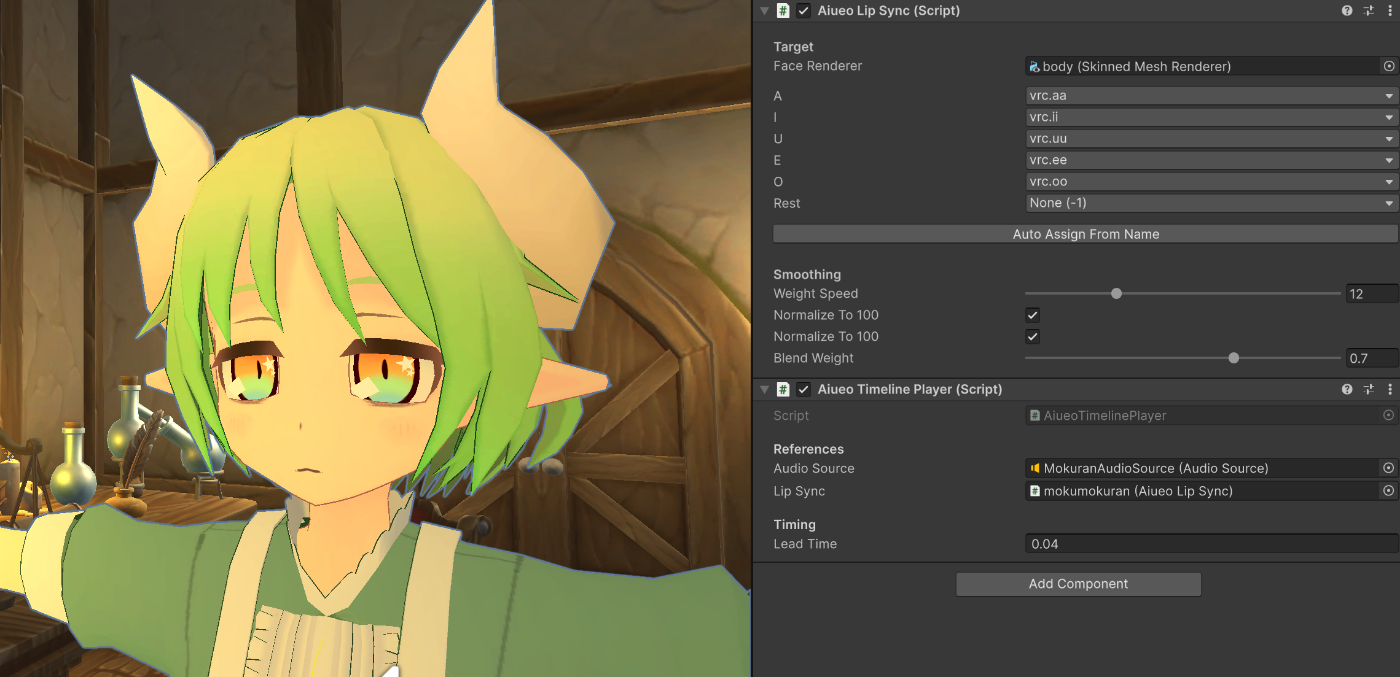
全て組み込んだら口パクができるようになります。
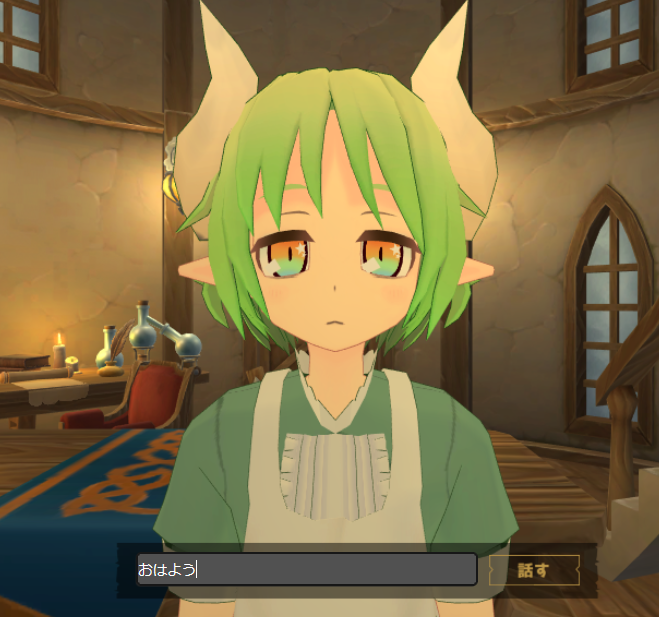
こちらで完成品がありますので、よかったらテストしてください。
Chromeでしかテストしてないので、
他のブラウザだと CORS ポリシーなどエラーが出るかもしれません。
完成形で LLM と組み込んだ例もあります。
この方法のメリット
実際に組んでみて感じたメリットはかなり大きいです。
音声と口パクの整合性が高い
波形をあとから解析するのではなく、
生成時の内部情報をそのまま使っているので、ズレが少ないです。
Unity 側の処理が単純になる
Unity 側では音素推定や分析をしなくていいので、処理が早くなります。
日本語口パクに向いている
AIUEO 口形にそのまま落とし込めるので、日本語の 3D キャラクターと相性が良いです。
WebGLでも口パクが正確
なぜか多くの Unity Plugin は Webgl の口パクが取れなかったり、
取れてもおかしかったりします。
この方法なら Python 側の処理で WebGL の処理関係なく正確に取れます。
デメリット
もちろん万能ではありません。
音声合成モデル依存
duration をどこで取れるか、phoneme ID をどこで見られるかは実装に依存します。
同じ Bert-Vits 系でもフォークによって少し構造が違う可能性があります。
また、Bert-Vits 系以外だとこの方法は使えません。(多分)
3D モデルで見た目が違う
モデルの作者によって AIUEO の口の形が微妙に違うので、微調整が必要です。
まとめ
Style-Bert-VITS2 を使っているなら、あとから音声を解析して口パク情報を推定するよりも、モデル内部の
- phoneme (音素)
- duration (長さ)
をそのまま取り出すという使い方が素直で強いです。
日本語の AIUEO 口パクに必要なのは、結局
- 何の音素を話しているか
- それがどれだけ続くか
の 2 つです。
Style-Bert-VITS2 ではその両方にかなり手が届きやすいので、\
Unity で口パクがいる場合にはかなり良い選択肢だと思います。
しかもこの考え方は、Duration Predictor と pyopenjtalk ベースの音素処理を持つ他のモデルなら使えます。
今回の方法を使えば、
- Python 側は生成時にタイムラインを作る
- Unity 側はそのタイムラインを再生する
というきれいな役割分担にもできます。
波形解析ベースの口パクより実装意図が明確で、デバッグもしやすいし、処理ロスもないです。
おわりに
これで誰かが Style-Bert-Vits2 をもっと改良や拡張してくれたらいいですが、
非常に有用なモデルなので、このまま更新が続けてほしいですね~

![UNITY で 3D AI キャラクターエージェントを 0 から作る! [プロローグ]](https://www.aithinkso.net/wp-content/uploads/2026/01/eyecatch.png)



コメント